

How to Automate Manufacturing Documentation Using ERP Data

- What Does Document Automation Mean in Manufacturing?
- Which Manufacturing Documents Should You Automate First?
- How to Automate Manufacturing Documents Using Existing ERP Data
- ERP Features, a Ready-Made DMS, or a Custom Workflow?
- A Manufacturing Example: Automating Shipping Documentation
- What to Prepare Before Automating Your First Workflow
- Frequently Asked Questions


Key Takeaways
- Document automation in manufacturing is the development of digital flows in which documents are created, reviewed, and approved according to defined rules without human intervention. [What Does Document Automation Mean in Manufacturing?]
- Start automation with the highest-volume, standard, medium-risk processes that involve repeated data entry, not the most complex export or regulatory documents. [Which Manufacturing Documents Should You Automate First?]
- Map every document field to its ERP source and owner, and keep a single system of record so the generator never creates documents from conflicting information. [How to Automate Manufacturing Documents Using Existing ERP Data]
- The ERP system must stay the single source of truth.
- Choose the lightest option that meets your rules: ERP templates first, a ready-made DMS second, and custom integration only for real gaps between systems. [ERP Features, a Ready-Made DMS, or a Custom Workflow?]
Picture a normal day at a manufacturing plant. The customer order has been sitting in the system for a while. The raw material is ready in the warehouse. The logistics team has already printed the waybill for the truck. But the truck is parked by the loading dock, just waiting. There’s a delay. Why? Because a manager in the next office is busy typing the same item codes, addresses, and quantities from the ERP into five different files: the invoice, the packing list, the customs declaration, and the carrier’s spec sheet. One typo, and the whole set has to be redone from scratch.
So here’s the strange part. The company spent thousands of dollars on a modern inventory system, and the final shipping document still gets put together by hand.
How do you get rid of this repeated data entry and these delays, without replacing your whole ERP system?
The answer is simple: pick one specific document, figure out where each field’s data comes from, lock in a single template, set up automatic data transfer, and test it on one pilot process. In this guide, we’ll walk through how document automation for manufacturing actually works, where to start, and how to build a reliable workflow without risking a shipping delay.
What Does Document Automation Mean in Manufacturing?
When people start talking about document automation, companies almost always get confused about what it actually means.
So, let’s start with the correct definition. Document automation in manufacturing is the process of replacing manual document processing with a digital one. The main role in this process is not the conversion of physical documents to PDF, but the creation of automated processes in which documents are moved, reviewed, and approved automatically based on specific rules, without direct human intervention.
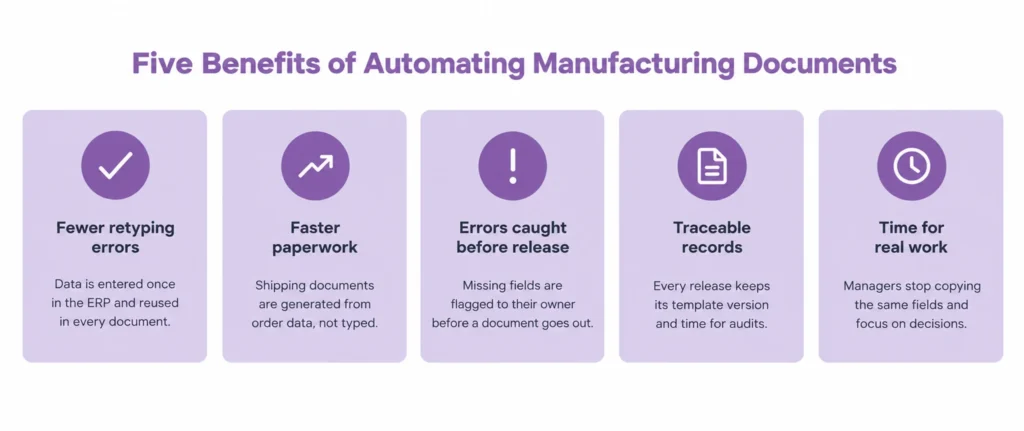
To make this clearer, let’s split document work into four different levels. They can work on their own, or together as one system:
One important point: if your data is already structured inside the ERP, you don’t need OCR (text recognition) just to move those numbers into a template. OCR is for when paper comes in from outside the company. For internal data, what you need is a proper setup for paperless document workflows in manufacturing.
And one more thing: don’t mix up a manufacturing document management system (DMS) with MES or ERP. ERP handles business accounting, MES runs the shop floor and the machines, and a DMS or document generator is the bridge that turns numbers from these systems into clean, legally sound paperwork or files, ready to send out.
Choosing between ERP vs MES? Read our article “ERP vs MES: Key Differences and When to Extend Your Existing ERP”
Looking for a way to automate document workflow?
Book a free consultation with Dinamicka’s experts. We’ll walk through your existing processes and help you choose the right document automation strategy for manufacturing.
Book a CallWhich Manufacturing Documents Should You Automate First?
Don’t try to automate your entire company’s document flow in one go. That’s the fastest way to burn out your team and drag the project out for years. Start with processes that involve a lot of routine retyping, have clear rules, and carry the lowest risk of shutting down the plant if something goes wrong.
Here are three common scenarios companies usually start with:
The golden rule for choosing is to go for the highest-volume process. But don’t jump straight into your most complicated or riskiest export workflow just because it’s where mistakes keep happening. Start with a standard, steady process that carries medium risk. Get that running smoothly, then move on to the messier, more complex paperwork.
How to Automate Manufacturing Documents Using Existing ERP Data
Let’s walk through what the real path looks like, from raw data in your database to a finished document, using a shipping document as an example.
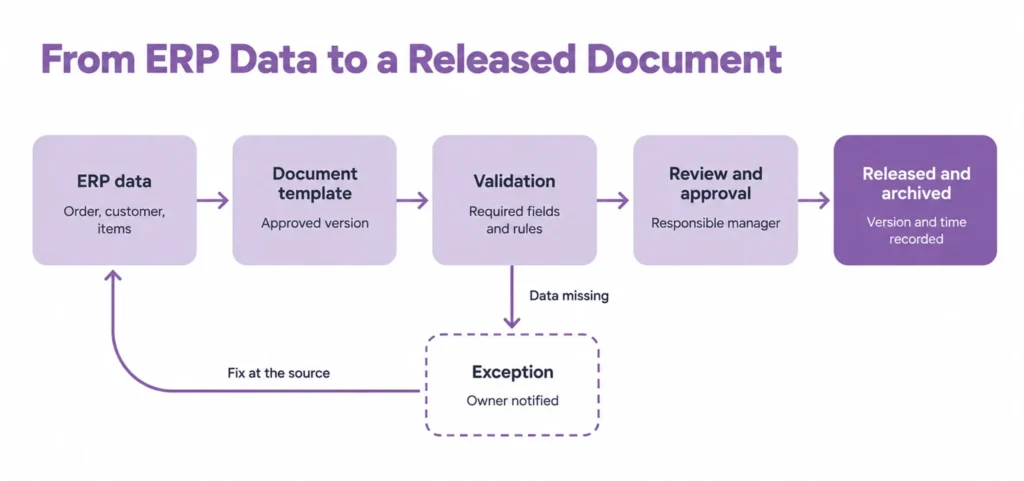
To make document automation for manufacturing run smoothly, you need to go through six steps.
1. Map the Document, Data Sources, and Owners
In the first step, you take a normal paper form or PDF and break it down field by field. For each field, you figure out where the data comes from and who’s responsible for it.
Here’s an example of a basic data map:
If sources don’t agree – say, the CRM has one address and the ERP has another – you need to set a clear rule for which one wins. Don’t just hope they’ll somehow sync up on their own.
2. Define Templates, Rules, and Required Approvals
A template isn’t just a Word file. It’s a managed structure with clear rules attached:
- Who’s allowed to change the template itself (the template owner)?
- Which fields are required, and which are optional?
- How does the form change based on the destination country or the type of customer?
Keep this in mind: generating a form automatically doesn’t mean it’s legally or regulatory correct on its own. Someone responsible, an operations or quality manager, needs to sign off on the template and the rules for filling it out.
3. Connect the Data Without Duplicating the System of Record
How do you actually get data from the ERP into the document generator? It depends on what your system can do:
- Native connectors / REST API: The modern, most flexible option. Sounds complicated, but in practice it’s just a secure digital channel where one program asks another for data, triggered by a command or an event.
- Controlled file exchange: If your ERP is older and doesn’t have open interfaces, it can still export structured files (JSON, XML, or CSV) into a secure folder on a schedule.
The main rule here: keep one system of record. The document generator should read data from the ERP, not build its own copies of customer or product lists that will slowly drift out of sync with the real database.
If your ERP doesn’t have ready-made tools for exporting data, companies usually bring in specialized API development and integration services to build this bridge without touching the core of the accounting system.
But if your ERP lacks the fields or workflows your documents depend on, extending it is usually the solution to this problem. Our ERP software development services cover that work, from adding modules to connecting them with the systems you already run.
4. Validate Data and Route Exceptions Before Release
Automation shouldn’t blindly churn out bad documents. If the “destination country” field is empty in the ERP, or a product’s weight shows as zero, the system needs to stop and flag it to the right person.
Common problems and how to handle them:
- Missing required fields: The system marks the document as “Pending Data” and alerts the manager.
- Outdated template: The release is blocked until the template gets updated.
- Network failure during a request: Idempotency.
Worth explaining that last term, idempotency. In plain terms: if a network glitch causes the system to send the same generation request three times in a row, it should return the same finished document each time, not create three separate copies with different numbers.
5. Generate, Review, Release, and Keep a Traceable Record
A document can be in one of two states: a generated draft, or a released document.
You can have as many drafts as you want, and they can change freely before approval. If review is needed, the person in charge checks the document and clicks “Approve.” After that, the document gets its final status, and the order ID, template version, and release time all get recorded.
Released documents need to be fully traceable and transparent about any changes. If you find a mistake after sending one out, you follow a formal cancel-and-reissue process, so you always have a clear record of what changed and when.
6. Pilot One Workflow and Measure the Result
Run the process on one standard order type first. During the pilot, check not just the happy path, but the edge cases too:
- What happens if someone changes the ERP data after the draft’s already been generated?
- How does the system behave if the internet goes down mid-exchange?
Measure your KPIs before and after: the manager’s actual hands-on time per order, the total time from order-ready to printed shipping documents, and the rework rate — the percentage of documents that need to be redone.
Not sure where to start? Schedule a call.
Dinamicka’s experts will help you evaluate internal assets and start the process of documentation automation in manufacturing.
Book a CallERP Features, a Ready-Made DMS, or a Custom Workflow?
Choose the lightest option that meets your rules. Use the ERP’s own templates if they already cover the document. Use a ready-made platform if its standard workflow fits yours. Build a custom workflow only for gaps between systems that those two do not close.
A ready-made document management system for manufacturing makes sense when standard workflows cover most of your documents. Check its connectors, export options, licensing and user rights before you buy. A custom integration earns its cost when your rules or the gaps between your systems are unusual. The cost includes upkeep, because someone has to maintain the integration after launch. If you land there, the work is manufacturing software development with a narrow scope, one document and a few connections.
A full custom DMS fits only when significant requirements stay open after the other options, and then you own security, updates and the whole life cycle. Any option can win on cost, speed or integration, depending on the case, so compare them on your own criteria. The criteria in the table are our own working criteria.
A Manufacturing Example: Automating Shipping Documentation
A premium pork producer ran its inventory and customer data in an internal system, but every shipment still required its paperwork to be filled in by hand. Customs and logistics documents were copied from one source to another, and each copy was a chance for a missing field, a mismatched weight, or an outdated form. Overtime to close shipments was a daily routine.
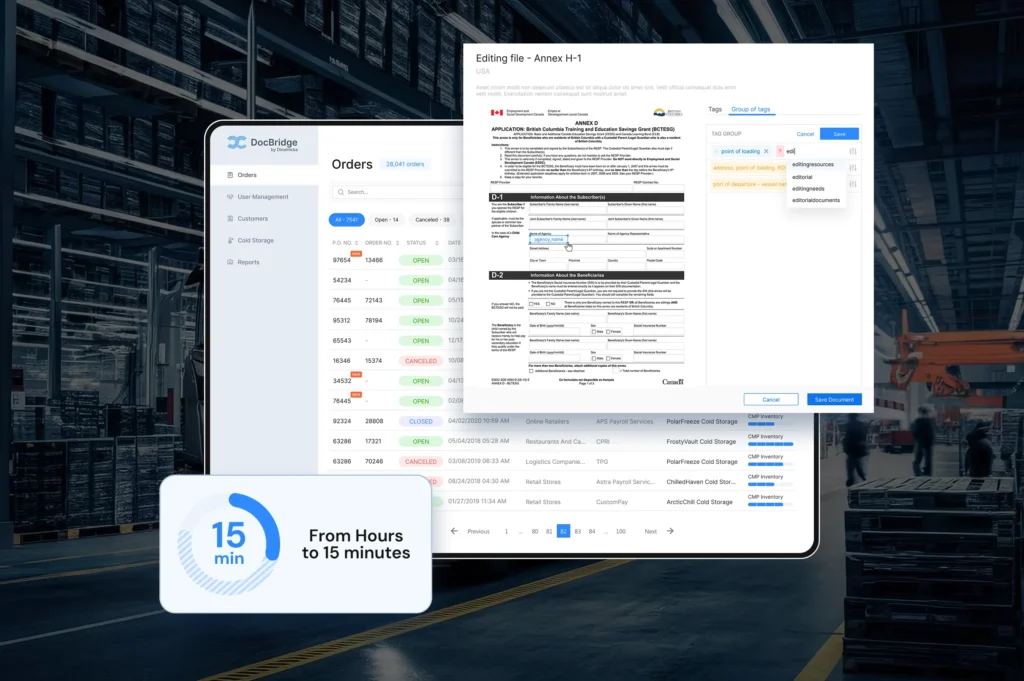
Dinamicka built a document management system that reads the data the company already keeps in ERP, fills in shipment documents automatically, and checks them against the inventory before they leave the warehouse. The system generates documents for the specific rules of each country of delivery, lets managers review and edit them at any time, and keeps the full set of certificates, instructions, and customs requirements in one place.
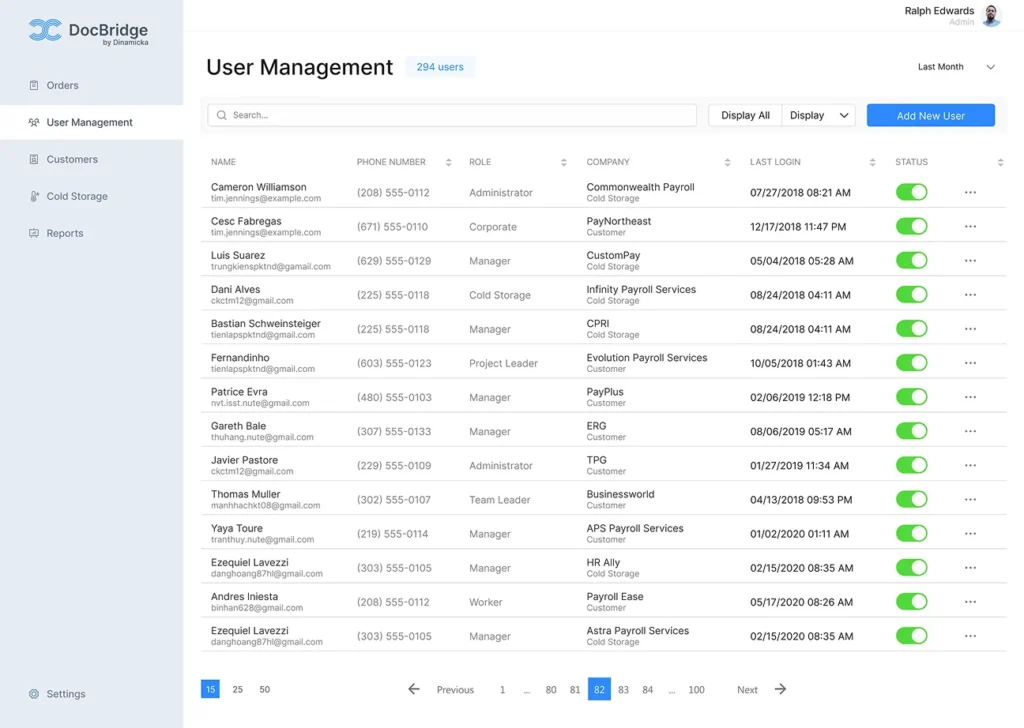
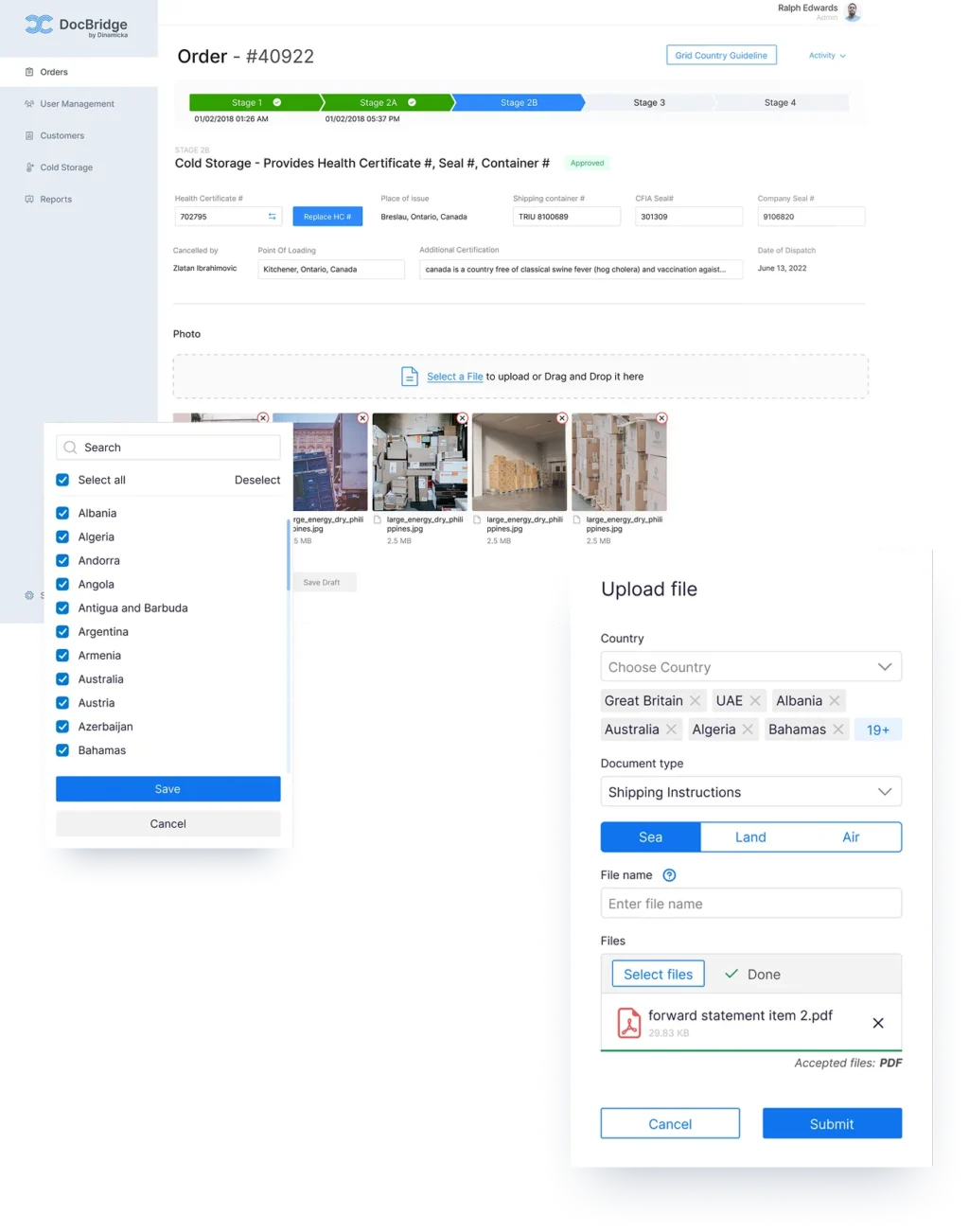
Around the core, we built the parts operations needed day-to-day: role-based access for customers, inventory staff, and cold-storage managers; order and customer views with adjustable columns; cold-storage tracking with temperature ranges; Excel reports; and email notifications at every stage of a shipment.
Read the full case study of a custom document management system for a meat producer.
What to Prepare Before Automating Your First Workflow
If you’ve decided to automate your first document process and plan to talk it over with IT or an outside vendor, put together a short checklist first. It’ll speed up the evaluation a lot:
- Sample document: A real example with sensitive details removed (no trade secrets).
- List of fields and sources: Where each line comes from (for example: address → ERP customer record).
- Volume: How many of these documents go out per day or per month.
- Current time and rework: How many minutes it takes to do one by hand, and how often mistakes happen.
- Template variations: What conditions change the document’s layout (country, delivery type, language).
- Approval rules: Who needs to sign off on the document, and when, before it’s sent.
- Exception owner: Who fixes things if the ERP data turns out to be wrong.
- ERP capabilities: Which exchange interfaces (API, file import/export) your current system supports.
Frequently Asked Questions
Do you need AI to automate documents?
No, not usually. If your data’s already structured inside the ERP, simple rules and regular templates will do the job. AI and data extraction tools (OCR) are for something else: dealing with incoming chaos, like paper scans or random PDFs from suppliers.
Can an outdated ERP support automation?
Yes. The main thing is having some way to access the data — a scheduled XML or JSON export, say, or even plain read access to the database. That said, check your old system’s licensing and performance before you get started.
If the system is too old to expose any data at all, it needs modernizing first. Our software modernization services update the older parts of the system in phases, so the document automation can start without a full replacement.
What happens if the source data disappears or changes?
The system should stop the process right away. Then it flags an exception and calls in a person. The software shouldn’t quietly fill in missing fields with random junk, or silently overwrite documents that have already been approved.
Does this guarantee full compliance?
No. Automation doesn’t guarantee legal accuracy on its own. It just follows the rules you give it, strictly. If your templates or checks are flawed, the system will produce wrong documents even faster. A quality specialist or lawyer needs to approve the rules and template versions.
Latest writings

How AI and Dynamic Routing Cut Costs and Optimize Logistics

Build vs. Buy Software in 2026: What Actually Changed
